Structured data explained
Can I open a JSON file in Excel?
Yes. Excel can import JSON via Power Query and will automatically flatten many JSON structures into a table. You’ll get the cleanest result if your JSON is an array of objects with consistent keys.

Yes. Excel can import JSON using Power Query, and it can automatically detect and flatten many JSON structures into a table for you. The cleanest results usually come from a JSON array of objects, where each object has the same set of properties that become columns Power Query JSON connector Output Excel data as JSON.
Check your Excel version’s import support
Use an Excel installation that provides the Power Query JSON connector. Menu names and connector availability vary by platform, version and update channel; if JSON is absent from Get Data, check that installation’s supported connectors rather than renaming the file to .xlsx. A JSON file is not an Excel workbook.
Import JSON and understand the table shape
1) Power Query: From JSON
- In Excel, go to Data and select the JSON option in Get Data. Power Query opens and shows a preview of the file.
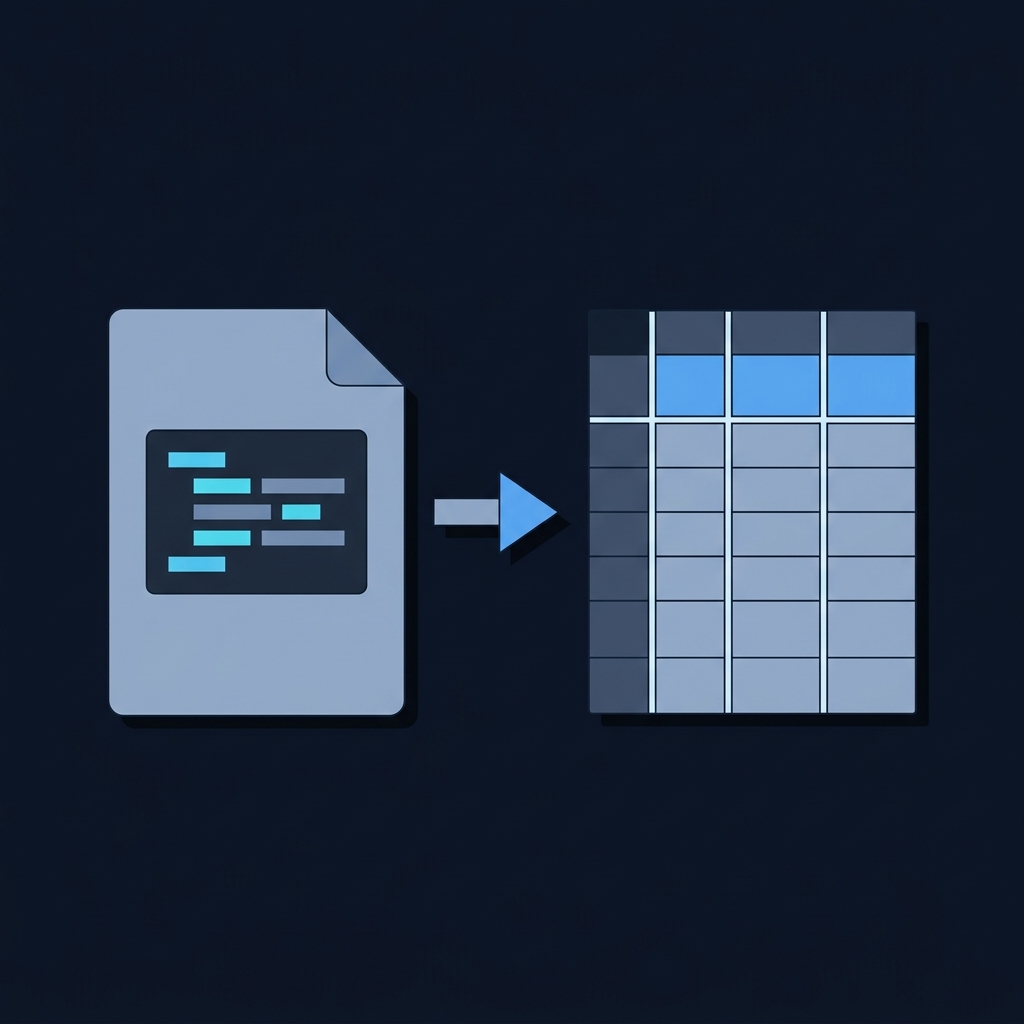
- Power Query uses automatic table detection to flatten the JSON into a table. You can expand nested records/lists and then load to a worksheet Power Query JSON connector.
- You can also load JSON from a URL via the Web connector, then authenticate if required Power Query JSON connector.
2) Script/export workflow when you control the source
If you’re generating data from Excel or another system, prefer a JSON array of objects. Microsoft’s Office Scripts guidance represents Excel table rows as an array where each object’s keys are the column headers. That shape is a useful starting point for import because keys can map to columns; check the actual inferred types and expansion steps Output Excel data as JSON.

Shape your JSON for clean columns
Use a top-level array of objects with consistent keys. For example:
[
  {"id": 1, "name": "Alpha", "status": "ok"},
  {"id": 2, "name": "Beta", "status": "pending"}
]
When you import this file with Power Query, it detects a list of records, converts it to a table, and each property (id, name, status) becomes a column. This mirrors how Excel table data is serialized as JSON in Office Scripts Output Excel data as JSON.
Step-by-step: import a JSON file
- Open Excel, go to Data and choose JSON in Get Data Power Query JSON connector.
- Review the preview. If you see a list, convert it to a table and use the expand controls to create columns from record fields.
- Expand or remove nested objects and arrays until each column contains simple values you want on the sheet.
- Select Close & Load to create a worksheet table.
Check data types before loading
Review any automatically added type-conversion step. An identifier such as "0032" should remain text when leading zeros matter, and long numeric identifiers should not be silently rounded into spreadsheet numbers. Expanding a list can create multiple rows per original record, so compare row counts and key values with the source before treating the table as a faithful export.
Common issues and quick fixes
- Malformed JSON: If the file isn’t valid JSON, Power Query shows a load error. Fix the JSON syntax and try again Power Query JSON connector.
- JSON Lines (.jsonl): These are one-JSON-object-per-line. In a compatible Power Query workflow, a line-by-line parsing transformation and then an expand step can handle them; see the connector page’s JSON Lines guidance Power Query JSON connector.
- Inconsistent keys: If objects use different property names, you’ll get many sparse columns. Normalize keys before import for predictable columns.
- Nested data: Expand nested records and lists in Power Query, or preprocess to a flatter shape for better performance.
Checklist for a smooth JSON import into Excel
Related reading on CheckMySchema
FAQ
Can Excel import JSON from a URL?
Yes. Use the Web connector, enter the file’s URL, authenticate if needed, and Excel will open it in Power Query for transformation and loading Power Query JSON connector.

A useful next step
Before importing a file, distinguish one JSON document from newline-delimited JSON records. What are JSONL files?.