Structured data explained
How to create a video schema with VideoObject JSON-LD
A practical guide to adding VideoObject JSON-LD on the watch page, covering required and recommended properties, key moments and livestream enhancements, validation and monitoring.
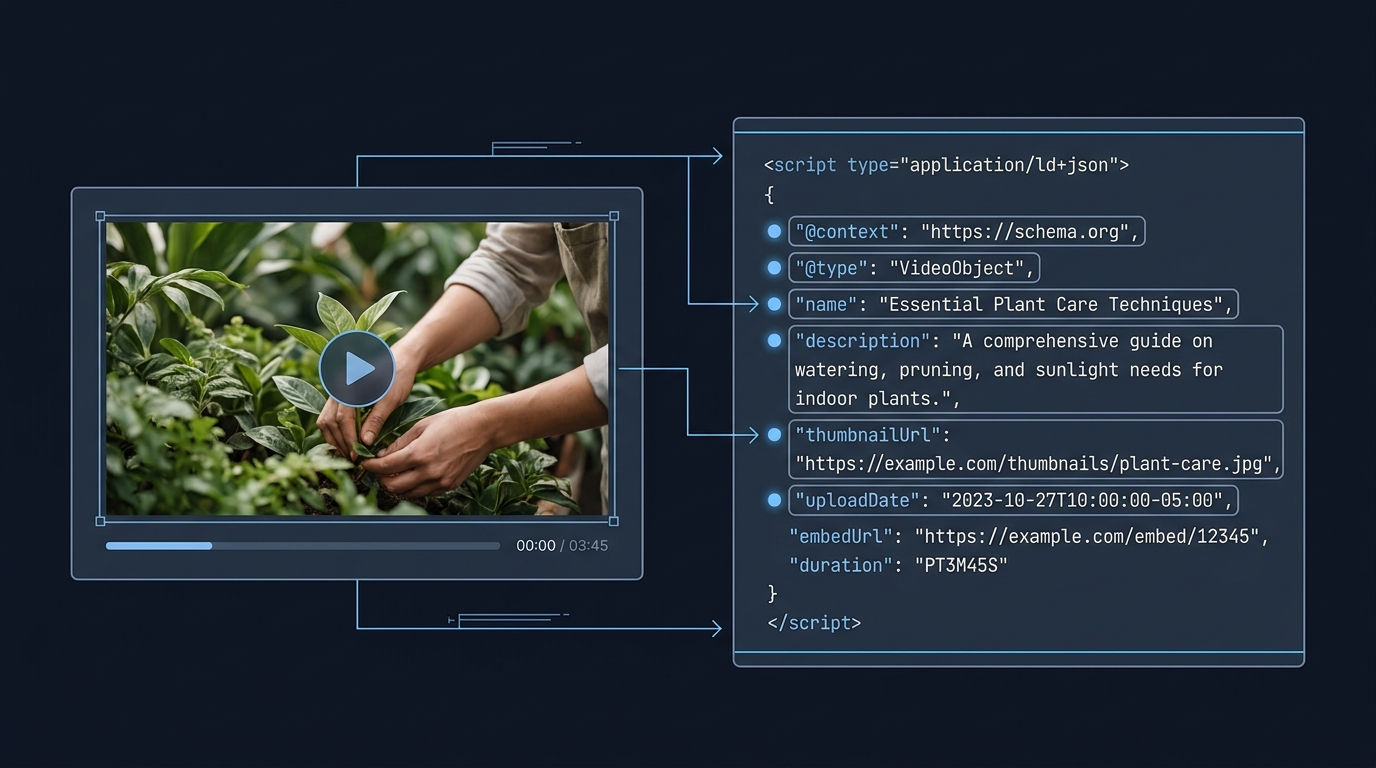
Add a VideoObject as JSON-LD to the page where users can watch the video. At minimum include name, thumbnailUrl and uploadDate; then add a description and either contentUrl (direct video file) or embedUrl (player). Validate in Google’s Rich Results Test, make sure the page and assets are crawlable, and submit a sitemap for discovery (https://developers.google.com/search/docs/appearance/structured-data/video).
What VideoObject is and what to include
VideoObject is the Schema.org type for describing a video. Google’s documentation lists three required properties for eligibility in video features: name, thumbnailUrl and uploadDate. It also recommends properties such as description, duration (ISO 8601), contentUrl and embedUrl to provide a better user experience in Search (https://developers.google.com/search/docs/appearance/structured-data/video). Schema.org defines many additional fields you can use when accurate and available, such as transcript, caption, actor, director and interaction statistics (https://schema.org/VideoObject).
Required (Google)
- name
- thumbnailUrl
- uploadDate (use ISO 8601 format)
Recommended (Google)
- description
- duration (ISO 8601, for example PT1M54S)
- contentUrl (direct video file) and/or embedUrl (player URL)
- interactionStatistic, regionsAllowed, ineligibleRegion, hasPart (for clips), publication (for livestreams)
(Sources: Google’s video structured data documentation and Schema.org’s VideoObject definition: https://developers.google.com/search/docs/appearance/structured-data/video, https://schema.org/VideoObject)
Step-by-step: implement VideoObject on a watch page
- Identify the watch page (the URL where the video is playable). Google expects structured data on the page where users can watch the video (https://developers.google.com/search/docs/appearance/structured-data/video).
- Collect accurate values for required and recommended properties (unique title, thumbnail URL, upload date/time, description, duration, and either the contentUrl or embedUrl).
- Add a VideoObject JSON-LD block to that page. Keep URLs absolute and publicly accessible.
- Validate the markup with Google’s Rich Results Test and fix any errors (https://developers.google.com/search/docs/appearance/structured-data/video).
- Deploy, then request indexing and submit a sitemap to keep Google informed of the page and updates (https://developers.google.com/search/docs/appearance/structured-data/video).
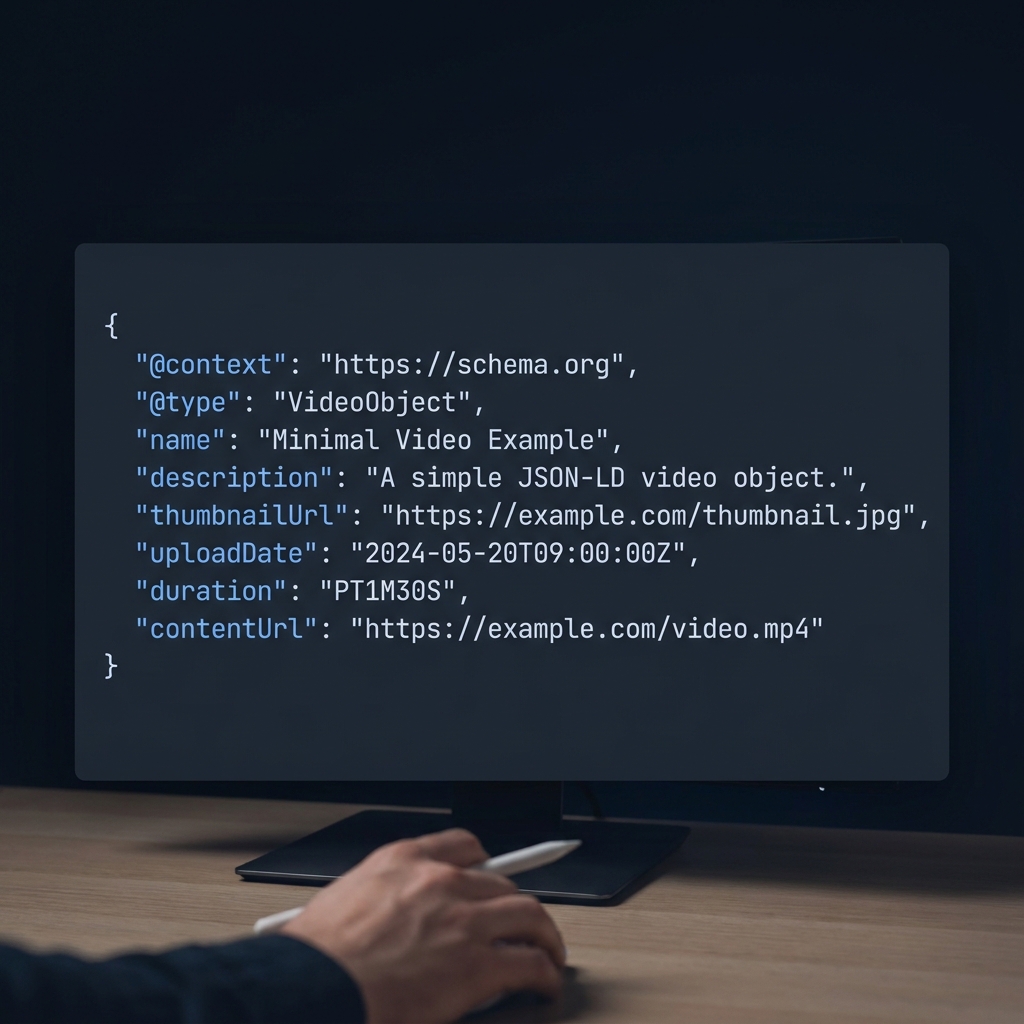
A minimal JSON-LD starter you can adapt
{
  "@context": "https://schema.org",
  "@type": "VideoObject",
  "name": "Example video title",
  "description": "Short, clear summary of what the video covers.",
  "thumbnailUrl": "https://example.com/thumbs/example-1280x720.jpg",
  "uploadDate": "2026-05-01T09:00:00+00:00",
  "duration": "PT3M42S",
  "contentUrl": "https://cdn.example.com/videos/example.mp4",
  "embedUrl": "https://player.example.com/embed/example"
}
For more JSON-LD patterns you can repurpose, see our walk-throughs of practical JSON-LD structures and @id usage: What is an example of schema markup? Practical JSON-LD @id examples and Can you provide an example of JSON-LD data? A practical Article JSON-LD guide.
Optional enhancements: key moments and livestreams
Key moments (Clip or SeekToAction)
- Clip structured data lets you define segments with a label, startOffset (in seconds), and a URL that deep links to that point. Required properties: name, startOffset, url (https://developers.google.com/search/docs/appearance/structured-data/video).
- SeekToAction tells Google how your timestamp parameter works so it can identify moments automatically. Required nested properties: potentialAction.target and potentialAction.startOffset-input. SeekToAction is supported in English, Spanish, Portuguese, Italian, Chinese, French, Japanese, German, Turkish, Korean, Dutch and Russian (https://developers.google.com/search/docs/appearance/structured-data/video).
- Your video must support deep linking to time offsets, and the total duration should be at least 30 seconds (https://developers.google.com/search/docs/appearance/structured-data/video).
Livestreams (LIVE badge)
- Nest a BroadcastEvent in your VideoObject with isLiveBroadcast, startDate and endDate to be eligible for the LIVE badge (https://developers.google.com/search/docs/appearance/structured-data/video).
- Use the Indexing API to notify Google when the stream starts and ends so crawling happens at the right time (https://developers.google.com/search/docs/appearance/structured-data/video).
Validate, deploy and monitor
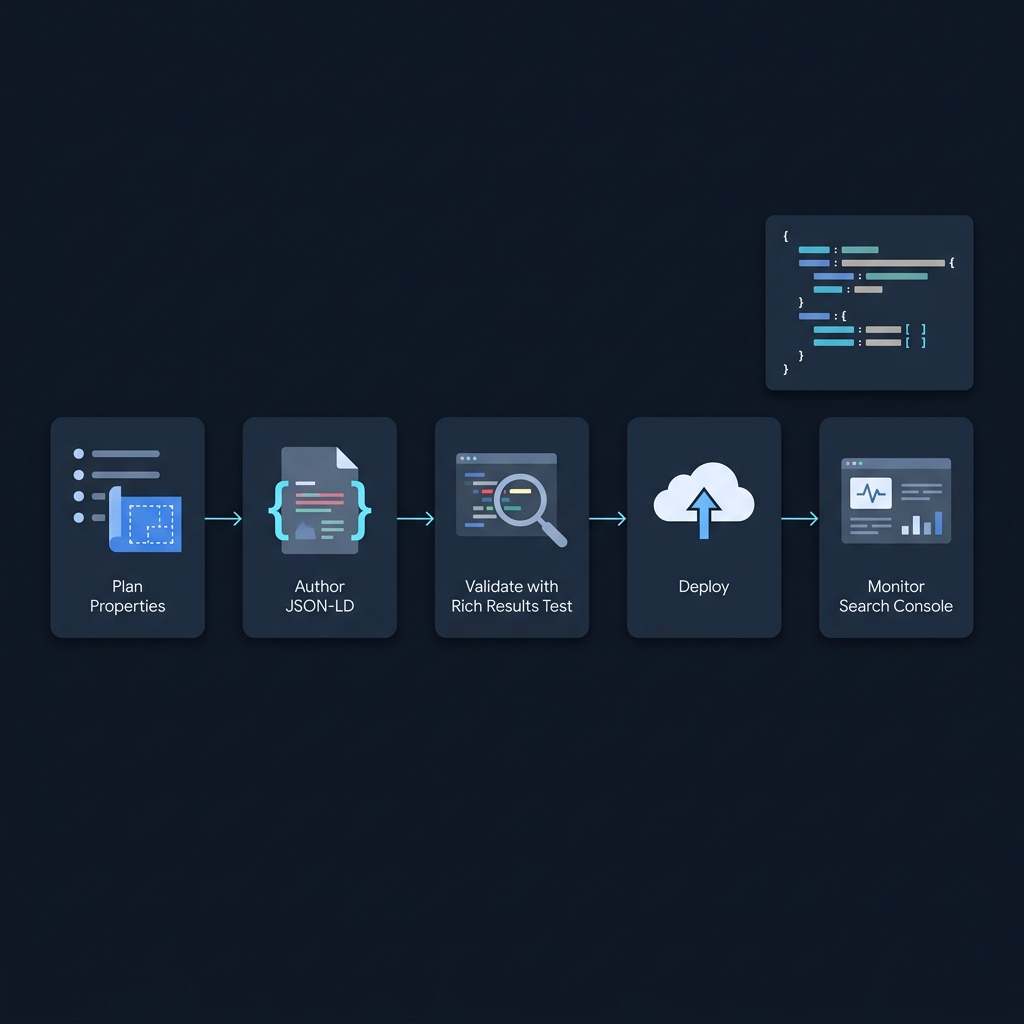
- Validation: Use Google’s Rich Results Test to confirm the video is detected and required fields are present (https://developers.google.com/search/docs/appearance/structured-data/video). For a broader preflight, see our step-by-step checklist: How to validate schema markup: a practical checklist.
- Accessibility: Ensure the page is indexable and not blocked by robots.txt, noindex, or login walls. Thumbnails and video URLs must return a successful HTTP status to Googlebot (https://developers.google.com/search/docs/appearance/structured-data/video).
- Indexing and sitemaps: After publishing, request indexing and submit a sitemap to keep Google informed about changes (https://developers.google.com/search/docs/appearance/structured-data/video).
Common mistakes and quick fixes
- Putting schema on a page where the video is not playable. Add VideoObject to the watch page (https://developers.google.com/search/docs/appearance/structured-data/video).
- Missing required properties. Always include name, thumbnailUrl and uploadDate. Use ISO 8601 for dates and durations (https://developers.google.com/search/docs/appearance/structured-data/video).
- Assets not crawlable. Don’t block thumbnail or video URLs; verify they are reachable by Googlebot (https://developers.google.com/search/docs/appearance/structured-data/video).
- Ignoring thumbnail guidance. Follow Google’s thumbnail image guidelines referenced from the documentation (https://developers.google.com/search/docs/appearance/structured-data/video).
Pre-publish VideoObject checklist
FAQ
Do I need both contentUrl and embedUrl?
No. Google lists both as recommended, not required. Provide at least one so Google can access either the actual video bytes (contentUrl) or the player (embedUrl). Including both is fine when you control them (https://developers.google.com/search/docs/appearance/structured-data/video).
Can I add the markup on a different page from the player?
Google expects VideoObject on the page where users can watch the video. Don’t point users to a page where the video isn’t playable (https://developers.google.com/search/docs/appearance/structured-data/video).
How do I enable key moments without defining each timestamp?
Use SeekToAction with a target URL template and the required startOffset-input value. Google can then identify and link to moments automatically; see supported languages in the documentation (https://developers.google.com/search/docs/appearance/structured-data/video).
